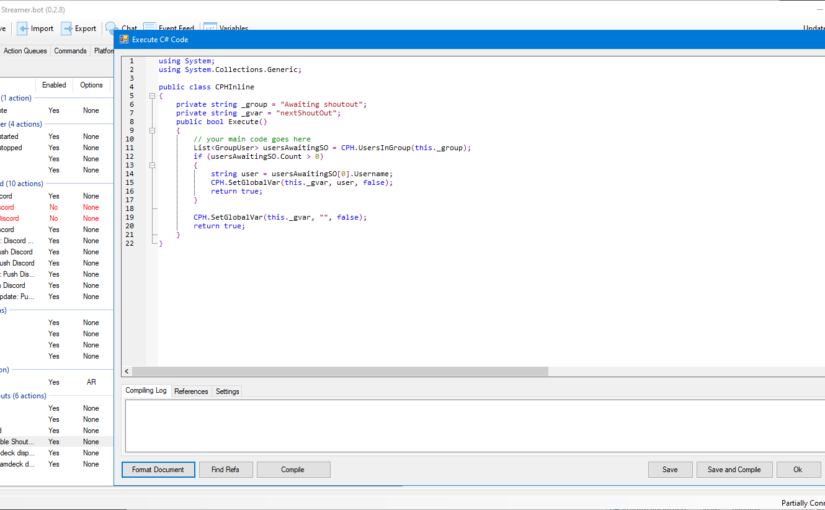
Streamer.bot is a great piece of software but it comes with some caveats: scripting is tedious. I use Streamer.bot for my own streams and I have enjoyed scripting some events.
This software is missing some pretty important debugging tools and Streamer.bot is not open source. I would have thrown in some of my improvements so I might instead get to writing plugins.
Inspecting all the variables a script can use
First, what I’m calling variables in this context is not actually variables, the documentation refers to these as arguments. But since I’ll be using them as variables, that have been set by previous actions, I will be referring to them as variables.
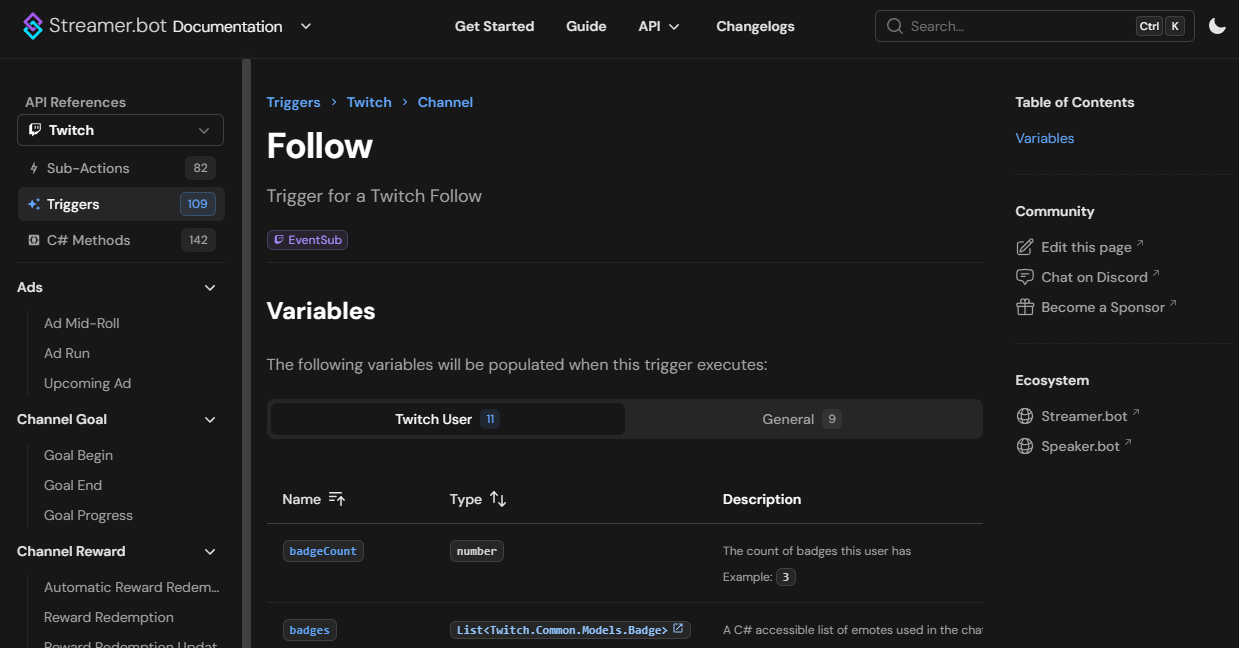
My main issue with C# script in Streamer.bot is that you cannot inspect variables easily. The documentation sometimes is incomplete and doesn’t list the variables that are available to you or sometimes it just displays a blank page.
The great thing about scripting, when you know what you are looking for, is that you can print to the log file whatever information you need:
using System;

public class CPHInline
{
    public bool Execute()
    {
        CPH.LogInfo("LogVars::Start");
        foreach (var arg in args)
        {
            CPH.LogInfo($"LogVars::{arg.Key} = {arg.Value}");
        }
        CPH.LogInfo("LogVars::End");

        return true;
    }
}
The output will look like (some lines were truncated):
[2024-04-29 07:29:31.736 DBG] InlineCode :: Running 'Execute' entry point from instance '5ded116b-fc1e-4ecf-9627-3055d1965acd'
[2024-04-29 07:29:31.752 INF] LogVars::Start
[2024-04-29 07:29:31.752 INF] LogVars :: __source = ElgatoWaveLinkMicrophoneMuteChanged
[2024-04-29 07:29:31.752 INF] LogVars :: microphoneName = Elgato Wave XLR
[2024-04-29 07:29:31.753 INF] LogVars :: microphone.name = Elgato Wave XLR
[2024-04-29 07:29:31.753 INF] LogVars :: microphone.gain = 0.75
[2024-04-29 07:29:31.753 INF] LogVars :: microphone.muted = True
[2024-04-29 07:29:31.753 INF] LogVars::End
You will then be able to access those variables through the TryGetArg function as such:
using System;

public class CPHInline
{
    public bool Execute()
    {
        bool muted = false;
        CPH.TryGetArg<bool>("microphone.muted", out muted);
        if (muted)
        {
            // Do something for a muted mic
        }

        return muted;
    }
}
The old documentation kindly refers to this snippet of code because I sure as hell wouldn’t come up with it.
Arguments VS variables
What Streamer.bot calls arguments can also be somewhat called variables. My opinion is that it can be confusing for those not in the know and I’ve set global variables in places where I didn’t think about using the arguments.
It’s fine because it works, but is it the proper way? No and I should make the switch where appropriate to make things run as they should be.
The big difference is that the triggers will output arguments that can be surround by % to be used such as %username%, while global variables are surrounded by ~ such as ~username~ when you want to use them.
But I still think that arguments should just be called local variables.
The page about arguments and variables: https://docs.streamer.bot/guide/variables#types
Conclusion
Due to the lack of proper up to date documentation and debugging tool it’s tricky to inspect what’s happening in Streamer.bot.
This post was written months ago but I never published it because I stopped producing content. I think it’s only right for this to go out to all of you in case someone might need it.